
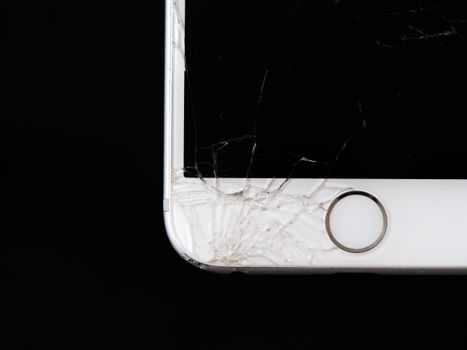
Where to Repair iPhone Screen Near Me?
Answered by MacTech Solutions.
First Steps After You Crack Your iPhone Screen
Your iPhone slipped off the truck seat or hit the parking lot pavement, and now there’s a spiderweb of cracks across the display. Maybe the touch still works and the damage is just cosmetic. Or maybe parts of the screen ignore your taps, show green lines, or flicker. Before deciding where to repair your iPhone screen, take a few minutes to protect yourself and the phone.
- Cover the cracks. Put clear packing tape or a cheap screen protector over the glass. Loose shards can cut fingers and spread the damage.
- Check what still works. Test touch across the whole screen, Face ID, the earpiece speaker, and the front camera. Tell the technician about anything that fails, because it can change the repair and the price.
- Watch for a swollen battery. If the screen is lifting away from the frame without a hard impact, stop charging the phone and get it looked at soon. A swelling battery can push the display out, and it is a safety risk.
- Keep it dry. A cracked screen is no longer water resistant. Keep it away from the sink, the pool, and Texoma storms until it’s fixed.
If the display is completely black but the phone still vibrates or rings, your data is probably fine. That matters when you back it up before the repair.
Where to Repair an iPhone Screen in Wichita Falls and Texoma
Wichita Falls doesn’t have an Apple Store. The closest ones are in the Dallas–Fort Worth area and Oklahoma City, which is a long drive for a screen. You have several realistic options:
- Apple Store (DFW or OKC). Expect genuine parts and full Apple warranty coverage. Book a Genius Bar appointment through the Apple Support app first. Screen repairs are often finished the same day, but the trip takes most of a day.
- Apple mail-in repair. Start a request at Apple’s support site or in the Apple Support app. Apple sends a box, and turnaround is usually about a week. This works well if you have a backup phone.
- Apple Authorized Service Providers. These shops use genuine Apple parts and Apple’s repair procedures. Apple’s support site lists any near you.
- Local independent repair shops. These are often the fastest and cheapest local option, and many offer same-day or walk-in service. Part quality varies a lot from shop to shop, so ask questions before you hand over your phone.
- Apple Self Service Repair. Apple sells genuine parts and rents tool kits for newer models. It’s doable if you’re handy, but it’s rarely worth it for a single screen.
If you have AppleCare+, go to Apple or an authorized provider. Screen damage is covered for a small service fee, which is usually far cheaper than paying out of pocket.
Questions to Ask Before Anyone Touches Your Phone
Two screen replacements can look the same on the counter and perform very differently a month later. Ask any shop these questions before you agree to the repair:
- Is the screen genuine, refurbished genuine, or aftermarket? Many iPhones from the iPhone X onward use OLED displays. Cheaper aftermarket replacements are often LCD panels with duller colors, thicker borders, more battery drain, and weaker touch response.
- Will True Tone and Face ID still work? A careful technician moves your original display data to the new screen so True Tone keeps working. Any damage to the Face ID components near the earpiece can permanently disable Face ID.
- Will I see a parts warning? On iPhone XR and later, a non-genuine screen can trigger an “Unknown Part” message. Check it afterward under Settings > General > About > Parts and Service History.
- Do you replace the adhesive seal? Without a new gasket, your phone loses most of its water resistance.
- What’s the warranty? Reputable shops guarantee their parts and work for at least 90 days, and many cover longer periods.
- How long will it take? Most screen swaps take about an hour when the part is in stock.
A quote that seems far below everyone else’s usually means a lower-grade screen.
Use Your Mac to Prepare Your iPhone for Repair
Any repair carries a small risk to your data, so back up first. Your Mac makes this easy, even with a badly cracked screen.
- Back up in Finder. Connect the iPhone to your Mac with a cable. Open Finder and click your iPhone in the sidebar. Check Encrypt local backup so that passwords and Health data are included, then click Back Up Now. On macOS Mojave or earlier, use iTunes instead.
- Trust the computer if prompted. If touch is broken and you can’t tap “Trust,” a Mac you’ve synced with before may connect without the prompt. Your iCloud backup is another option. Check it under Settings > [your name] > iCloud > iCloud Backup on the phone, or confirm your latest backup date at iCloud.com.
- Know your Apple Account password. You’ll need it afterward to sign back in and to manage Find My.
- Handle Find My correctly. On recent iOS versions, Apple can service your phone while Find My stays on. Some shops will still ask you to turn it off at Settings > [your name] > Find My, or from the Find My app on your Mac.
- Remove the case and screen protector, and note your passcode. The technician may need the passcode to test the phone after the repair.
When you get the phone back, test touch, Face ID, True Tone, and the cameras before you leave the counter.