(940) 767-6227
  • Facebook
  • X
  • RSS
  • Facebook
  • X
  • RSS
0 Items
MacTech Solutions
  • Home
  • Products
    • Mac
      • MacBook Air
        • MacBook Air 13-inch M2
        • MacBook Air 13-inch M3
        • MacBook Air 15-inch M3
      • MacBook Pro
        • MacBook Pro 14-inch M4
        • MacBook Pro 14-inch M4 Pro
        • MacBook Pro 16-inch M4
      • iMac
        • iMac 24-inch M4
      • Mac Mini
        • Mac mini M4
      • Mac Studio
      • Mac Pro
      • Apple Displays
        • Pro Display XDR
        • Studio Display
    • iPad
      • iPad
      • iPad mini
      • iPad Pro
        • iPad Pro M4 11-inch
        • iPad Pro M4 13-inch
      • iPad Air
        • iPad Air M2 11-inch
        • iPad Air M2 13-Inch
      • Apple Pencil
        • Apple Pencil (USB-C)
      • Keyboards
        • Smart Keyboard
        • Smart Keyboard Folio
        • iPad Magic Keyboard
    • Apple Watch
      • Apple Watch SE
      • Apple Watch Series 9
      • Apple Watch Ultra 2
    • iPod touch
    • Apple TV
      • Apple TV
      • Apple TV 4K
    • Airpods
      • AirPods Max
      • Airpods Pro (2nd Generation)
      • AirPods 4
      • AirPods 4 with Active Noice Cancellation
      • AirPods (3rd Generation)
      • AirPods (2nd Generation)
    • HomePod
      • HomePod mini
    • AppleCare+
    • Sonos
    • Adobe
      • Creative Cloud for Education
  • Service
    • Apple Authorized Service
    • Remote Support
  • Trade Ins
  • Classes & Events
  • About Us
    • Newsletter Sign Up
    • MacTech Solutions
    • The Team
    • Contact Us
  • Blog
Select Page
How to Add Important Metadata to Scanned Photos

How to Add Important Metadata to Scanned Photos

by Terry McAdams | May 2, 2023 | How-To, Mac, Photos

Photos we take today with our iPhones and other digital cameras automatically have metadata associated with them, information like time and date, camera type, lens and exposure information, and even location (with iPhones and newer cameras). Other metadata, like...
Reveal Your Desktop Quickly with a Keyboard Shortcut

Reveal Your Desktop Quickly with a Keyboard Shortcut

by Terry McAdams | Apr 27, 2023 | Desktop, Finder, keyboard shortcut, Mac, productivity, Tip

The Mac’s Desktop is a remarkably useful place. It’s a good spot for in-progress documents, screenshots, images dragged out of Web pages, and more. However, app windows tend to obscure the Desktop, making it harder to use. There are two quick ways you can temporarily...
How Often Should Macs Be Replaced?

How Often Should Macs Be Replaced?

by Terry McAdams | Apr 25, 2023 | Mac, productivity, troubleshooting

It’s a question as old as the personal computer. When should you replace your current Mac with a new model that’s faster and more capable? If money were no object, the answer would be easy—whenever you feel like it. For the rest of us, and particularly for...
How to Turn Mail’s Rich Website Previews into Plain Links

How to Turn Mail’s Rich Website Previews into Plain Links

by Terry McAdams | Apr 13, 2023 | Mac, Tip, troubleshooting

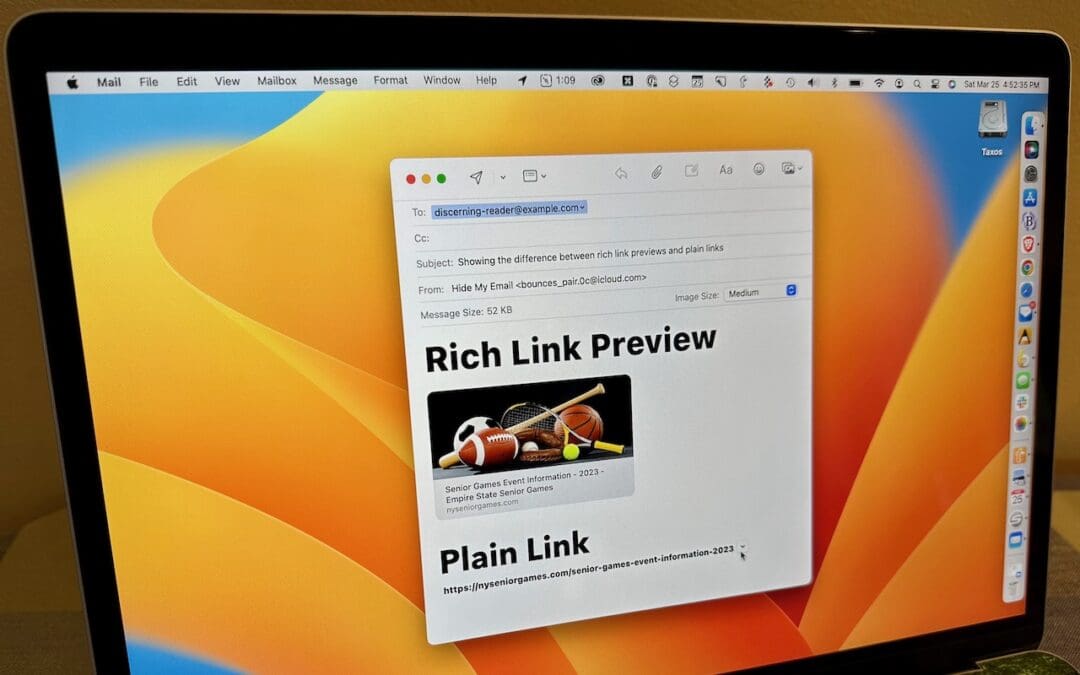
Sometimes apps can be too helpful. Apple’s Mail on the Mac likes to turn pasted URLs into graphically rich previews, and sometimes that’s OK. But other times, the preview is confusing or takes up too much space. Or you may want to send a plain link so the recipient...
Integrate Your Cloud Storage Service into the Finder

Integrate Your Cloud Storage Service into the Finder

by Terry McAdams | Apr 11, 2023 | Finder, Mac, productivity, Tip

Many businesses, schools, and other organizations have adopted cloud storage services like Box, Dropbox, Google Drive, and Microsoft OneDrive for excellent reasons. Cloud storage provides a centralized spot for shared data without the up-front cost or maintenance...
Quickly Put Lots of Files in a Folder with One Command

Quickly Put Lots of Files in a Folder with One Command

by Terry McAdams | Mar 21, 2023 | Finder, Mac, productivity, Tip

Imagine that you’re working with a bunch of files, and you want to put a set of them in a new folder. You could stop what you’re doing, make a new folder, select all the files, and drag them into the folder, like an animal. Or you could take advantage of a slick...
« Older Entries
Next Entries »

Archives

Categories

Terms and Conditions   |   Return and Shipping Policy   |   Privacy Policy
MacTech Solutions LLC DBA MacTech Solutions™
Copyright © MacTech Solutions, LLC   |   All Rights Reserved.

The MacTech Solutions logo is property of MacTech Solutions, LLC, a Texas Limited liability company. All other logos and trademarks are the property of their respective owners. Apple, the Apple logo, iPad, iPad Pro, iPod, Mac, MacBook Air, and MacBook Pro are trademarks of Apple Inc., registered in the U.S. and other countries.

Our Location

4020 Rhea Rd, Suite 3B
Wichita Falls, TX 76308
(940) 767-MACS (6227)

Hours

Monday-Friday: 10-6
Saturday: Closed
Sunday: Closed
Terms and Conditions | Privacy Policy

MacTech Solutions LLC DBA MacTech Solutions™
Copyright © MacTech Solutions, LLC   |   All Rights Reserved.

The MacTech Solutions logo is property of MacTech Solutions, LLC, a Texas Limited liability company. All other logos and trademarks are the property of their respective owners. Apple, the Apple logo, iPad, iPad Pro, iPod, Mac, MacBook Air, and MacBook Pro are trademarks of Apple Inc., registered in the U.S. and other countries.